Dashboard Transactions
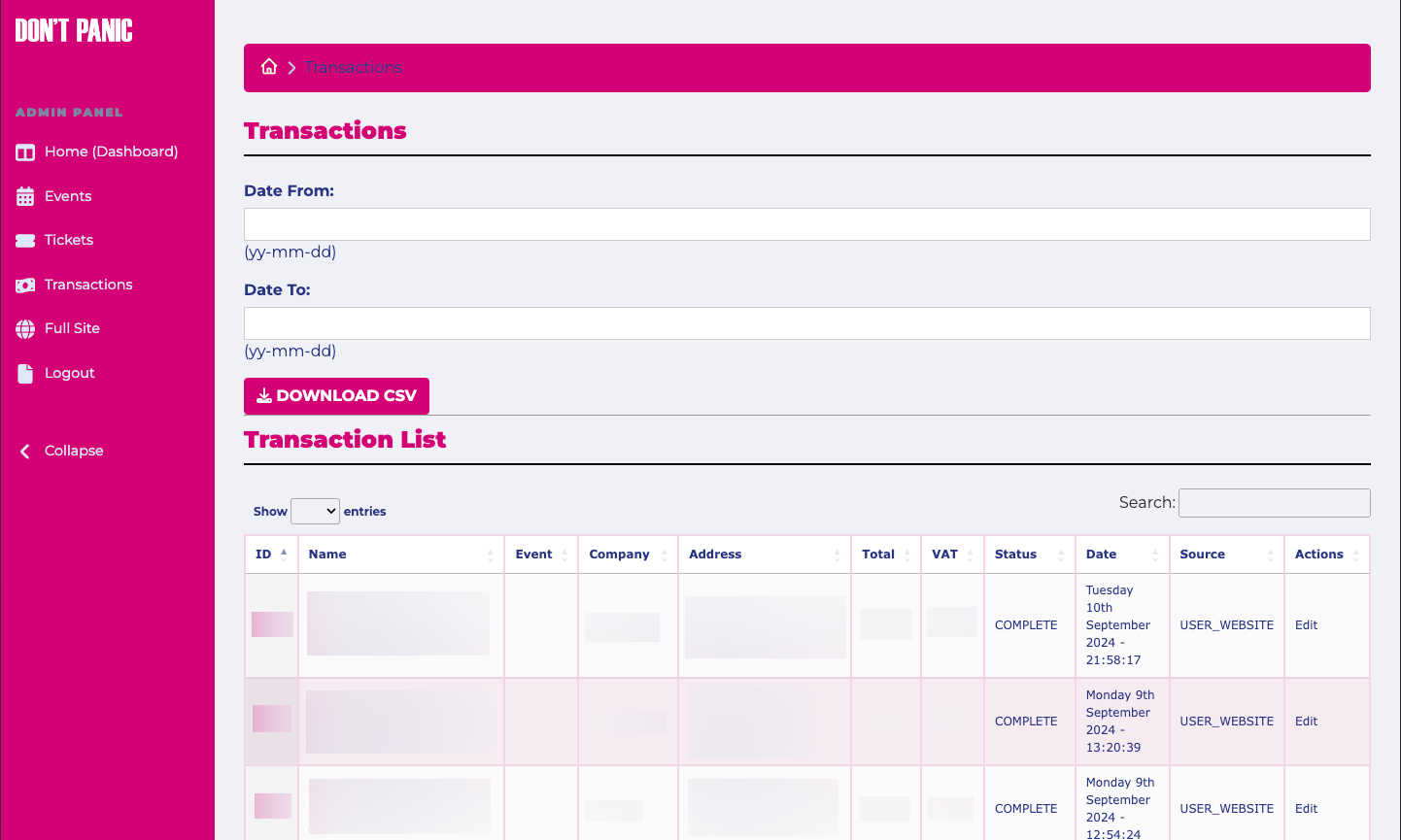
To access the events page click "Transactions" on the admin sidebar. A table of all the events on the site is displayed.
Exporting Transactions
Export a CSV of transaction data between two specific dates using the form above the transcation table.
The CSV provides further details on each transaction in a format easy to use and import to other applications.
Creating a new Transaction
It isnt possible to manually add transactions as they are records of payments made through the website.
New transactions are created when
- A new entry order is created when they transfer off the awards website to the payment page
- A new ticket order moves to the payment stage
- An invoice is manually created on the backend
View/Edit a Transaction
View a transaction
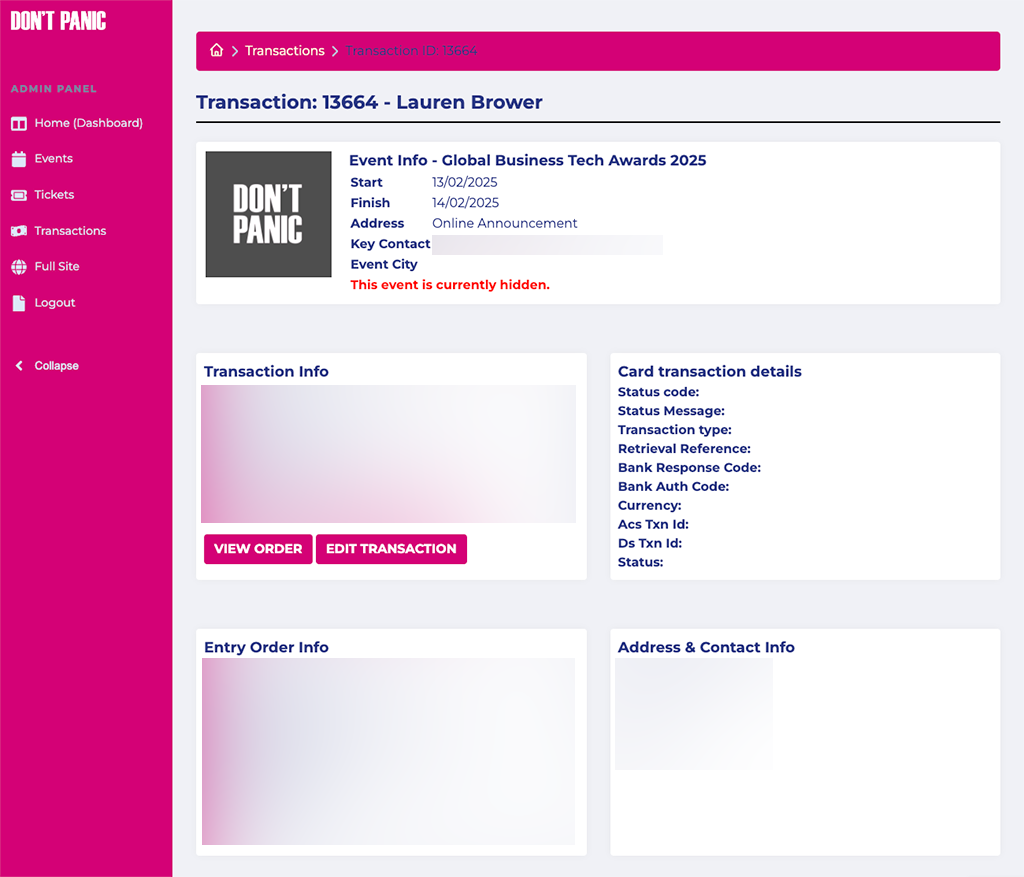
Click on the "View" link next to the Transaction entry on the main table. This takes you to the view screen. This provides further details about the transaction including
- Event Info
- Transaction Info (Amount, main contact details etc)
- Card Transaction Info (Raw data returned from the payment processor - this is good for verifying amounts charged to card are correct.)\
- Entry/Ticket Order Info
- Address Info (The billing address entered during the user purchase)
Edit a transaction
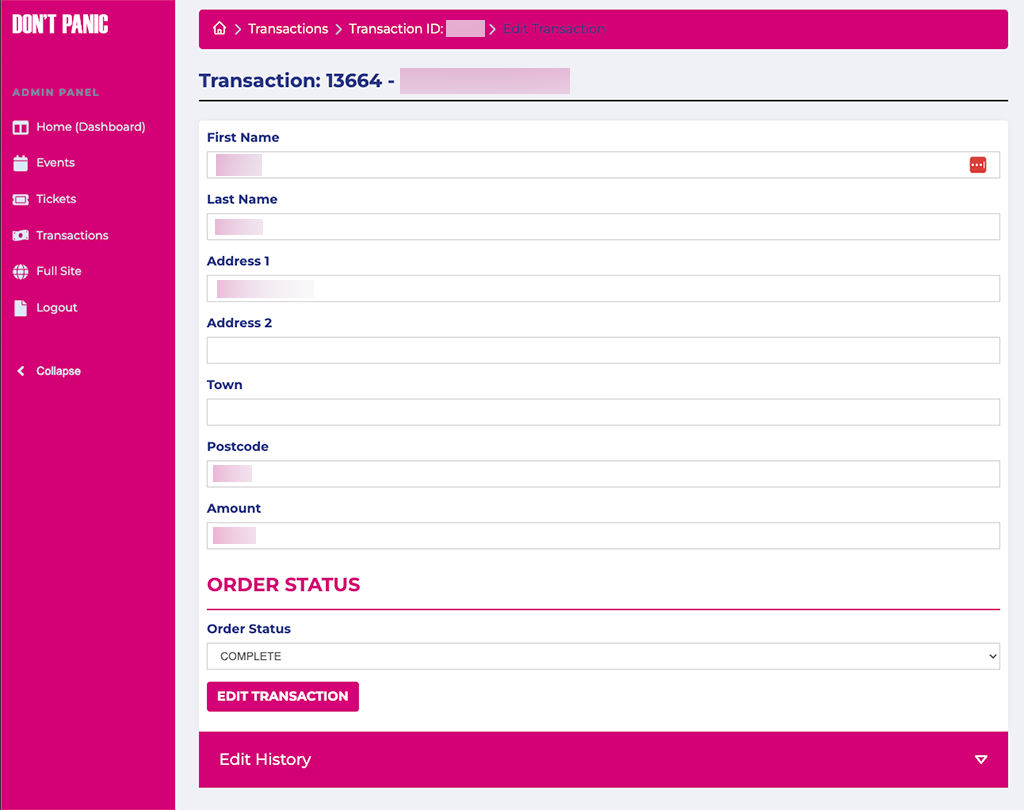
Click the "Edit Transaaction" button to open a form in a new window to change basic details about the transaction including the amount.
NOTE: This is not recommended for transactions initiated by a customer especially changing the amount. All changes to a transaction are logged. You will need to check the order linked to the transaction to make sure other amounts including tax are correct.