Dashboard Tickets
The section in the DP Dashboard for Tickets manages the discount codes.
Note: Discount codes only work for ticket purchases.
Tickets are currently managed in the WP Dashboard. For more details see here
Discount Codes
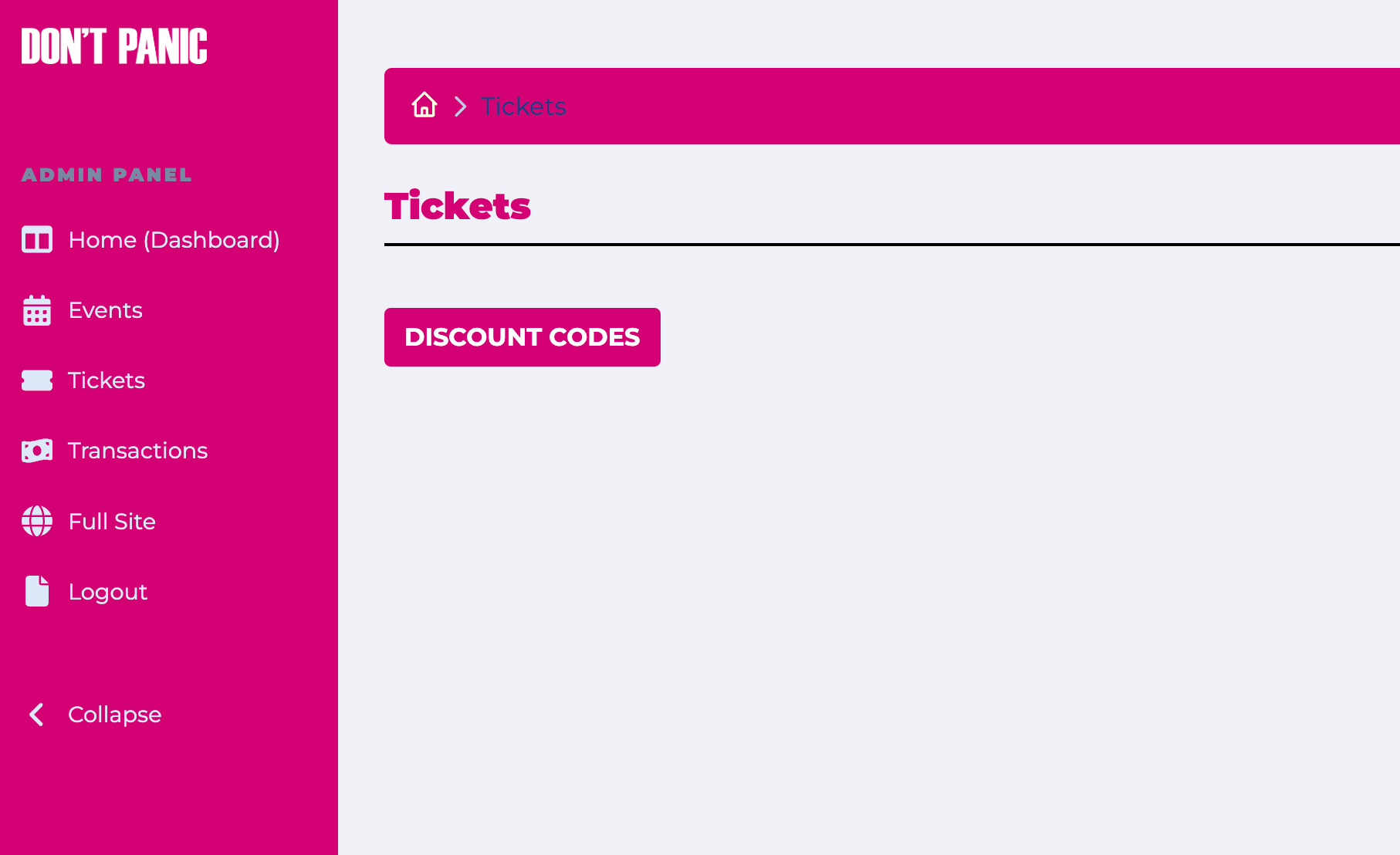
To manage discount codes go to Tickets in the DP Dashboard and click the Discount Codes button
You can add two types of discount code
- Percentage: When the code is successfully applied it reduces the order total by the defined percentage
- Amount: This subtracts from the order total by a defined amount
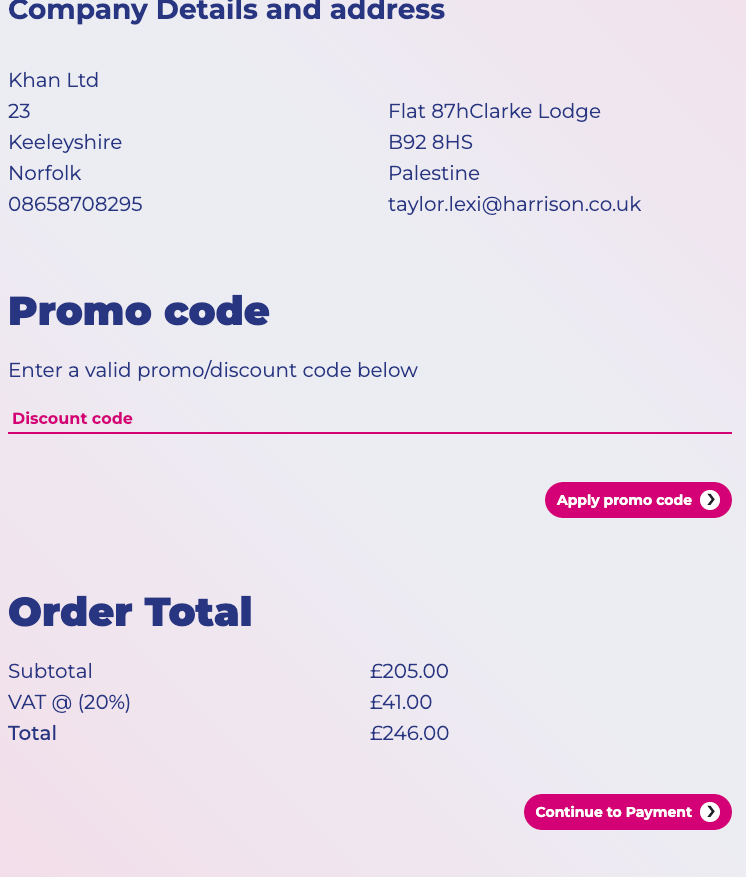
Discount codes are applied at the final step of the purchase screen.
Add Percentage discount
Click the Discount Codes button on the "Tickets" page in the dp dashboard or navigate to Discount Codes
Existing discount codes are listed on the discount homepage. The Discount Amount column is blank for percentage discounts.
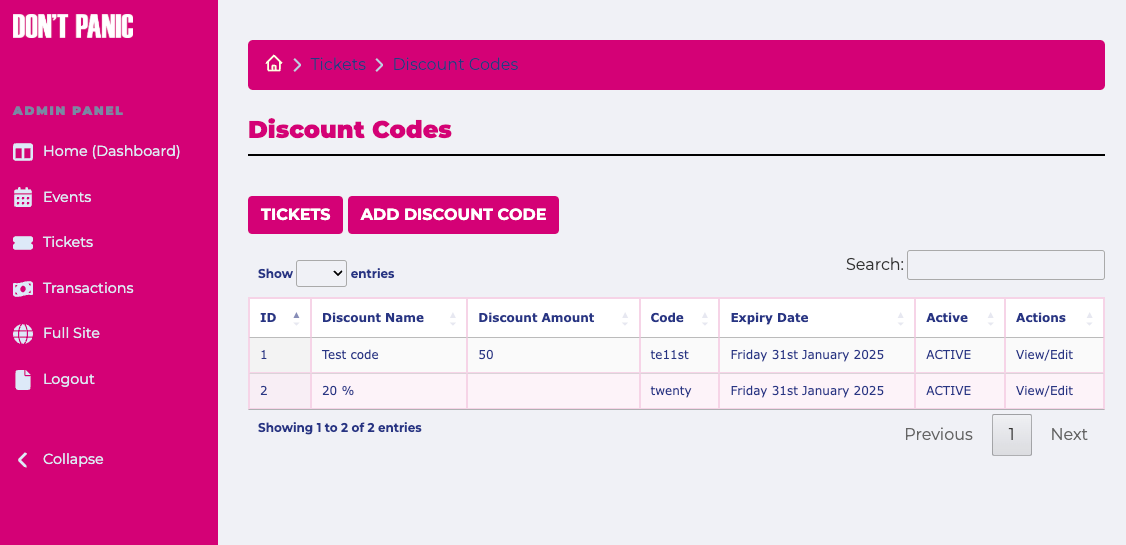
Select the Add discount code button to access the Add Discount Code page
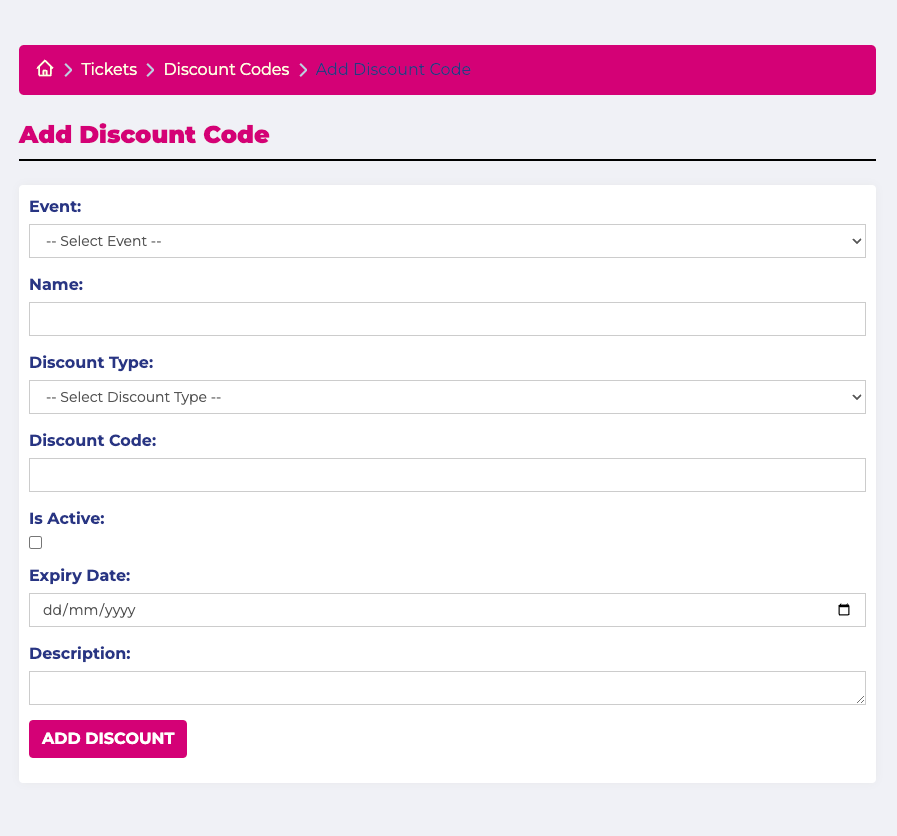
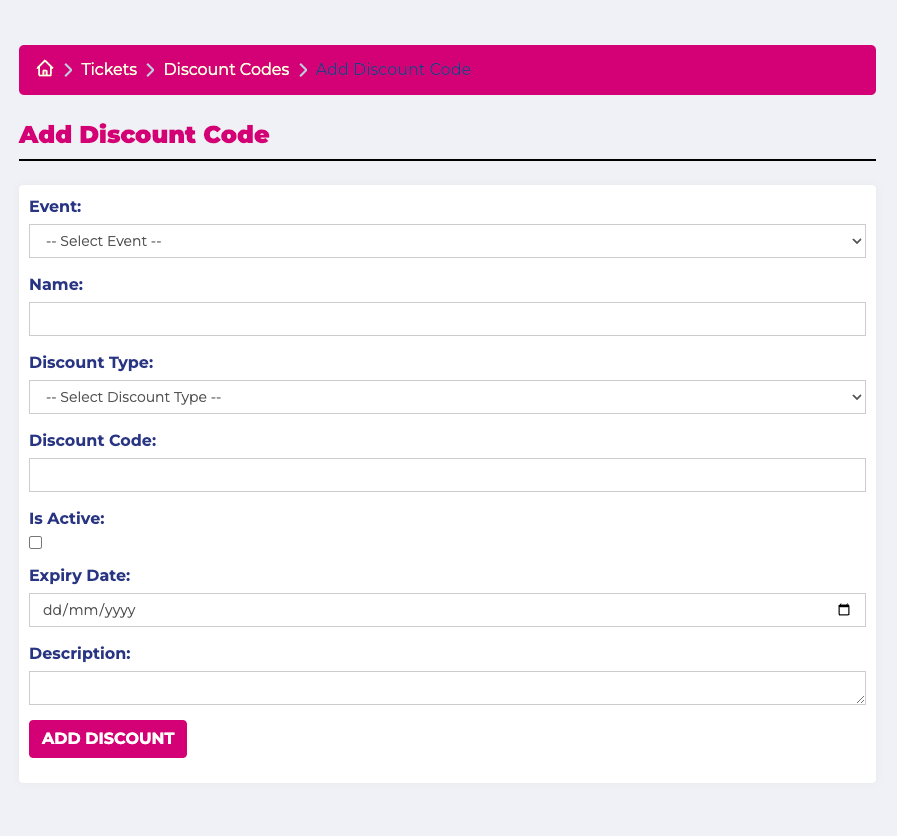
Select the event you want to apply the discount code to.
Add the name of the discount code. This is displayed to the user if the code is successfully applied.
Select Percentage from the Discount Type dropdown
Enter the code the user enters to apply the discount.
Check this box to make the discount code active.
Set an expiry date for some time in the future. If you want it to be permanent just add a date in the far future.
Add the description. This is for your own internal use. The description isnt displayed to the client.
Add amount discount
The steps for adding an amount discount are similar to adding a percentage discount except you select AMOUNT from the Discount Type drop down.
This changes the field underneath to amount. Enter the amount of discount you want to be applied whne the user adds the discount code.